

Cameras Page
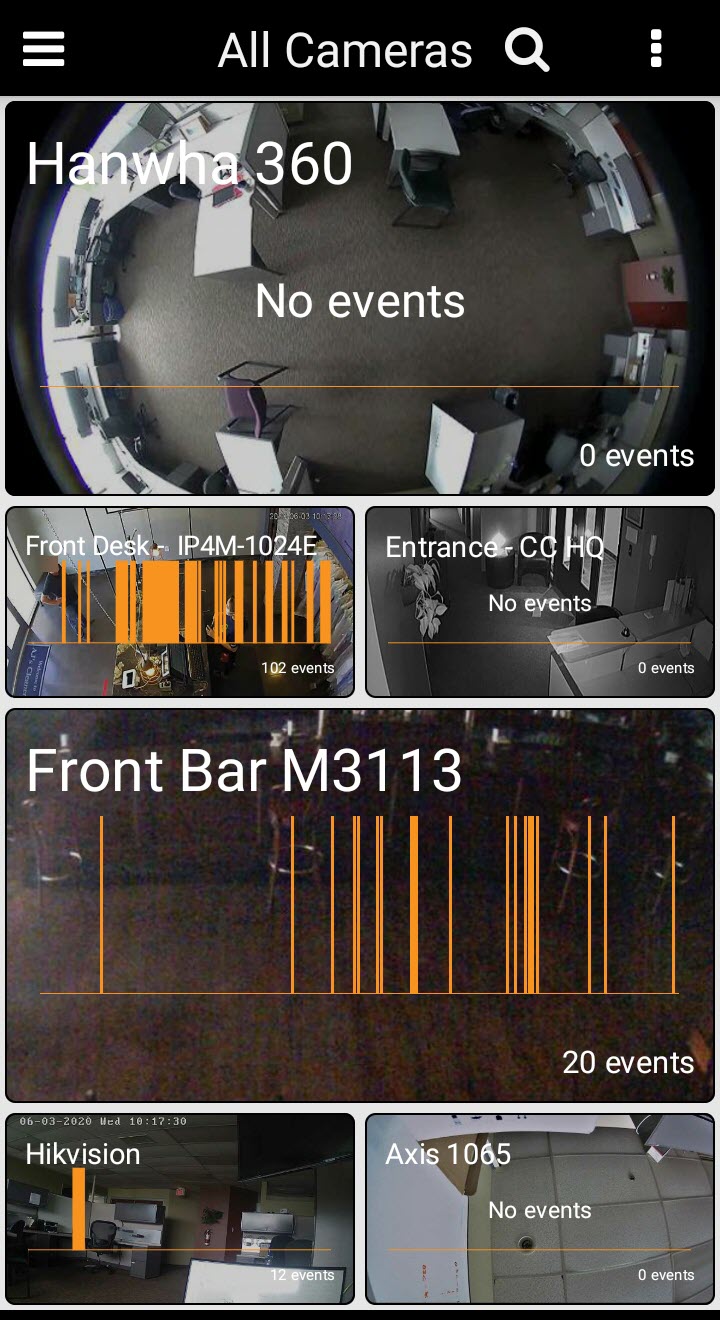
Access your cameras from the Cameras homepage. You’ll see a summary of all your cameras recent activity in a graphical format, along with a count of the number of recent events. You can also turn on/off those events by clicking the triple dot and going to Event History.
Customize Your Camera Layout
In the Cameras homepage you can pinch and zoom to resize the cameras, and click/hold and drag cameras around to whatever order you like. You can also swipe between groups (business plans only) and any camera configuration you save in a group will be remembered when you relaunch the app.
Mobile Timeline
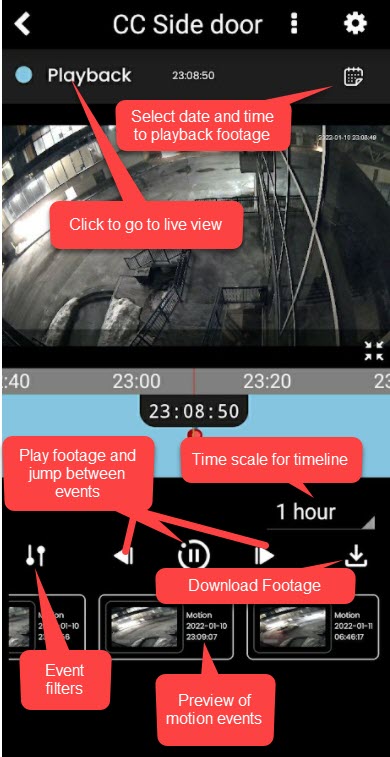
Interact with your cloud storage using the Timeline. Simply press any camera on your cameras page and you'll drill into the Timeline. Now you can use the touchscreen to move the timeline to any point in time, find your recorded media, and play it back. All your video clips and images play back using a continuous playback, just like on the web. You can toggle between recorded media and live video with one touch.
Event Explorer
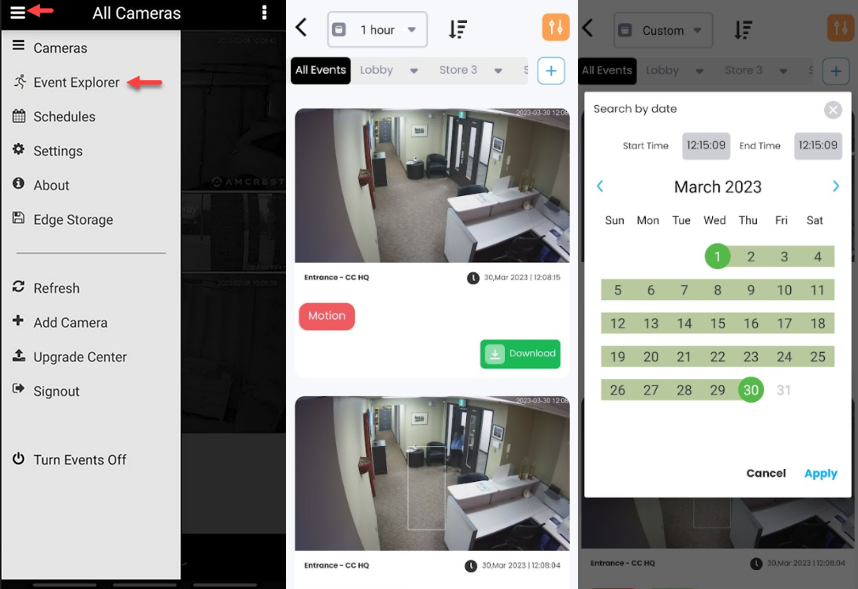
Access the event explorer to see previews and playback events for all of your cameras, you can filter on specific cameras and choose custom time ranges, as well as download the events directly:
Add Cameras
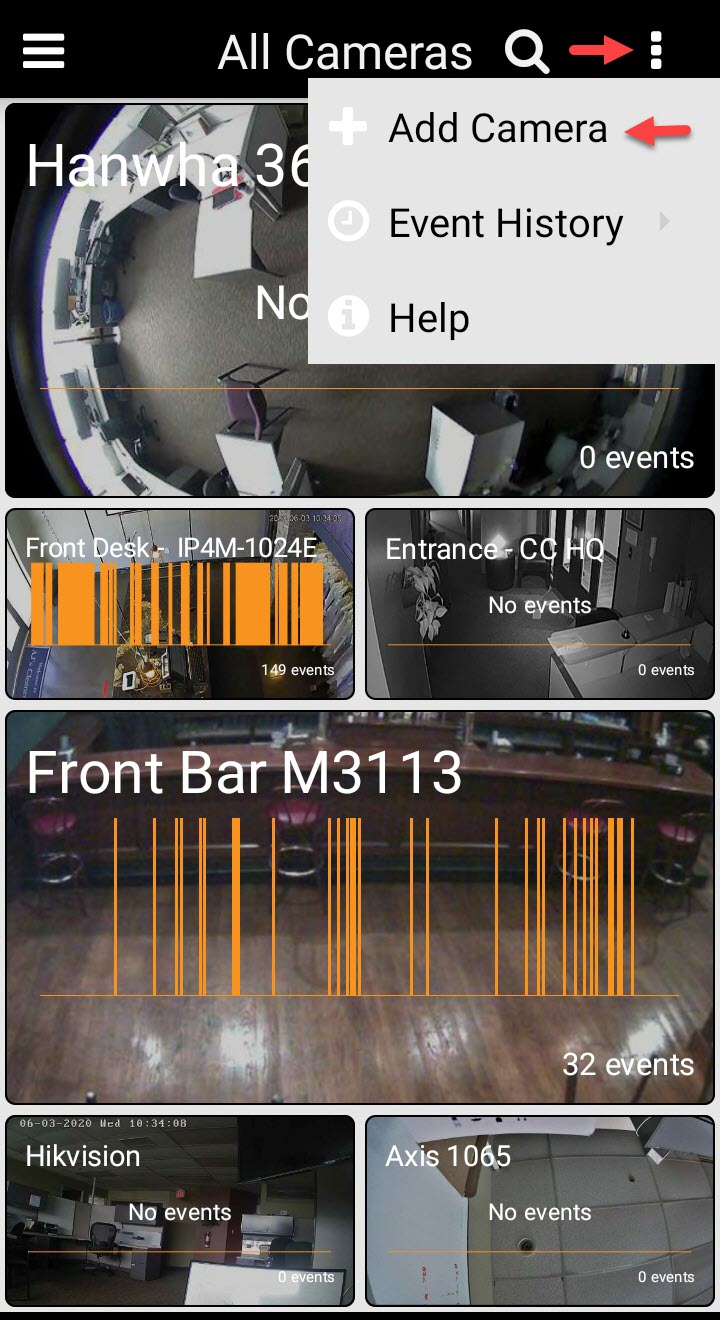
Add your IP camera to your account from your mobile app, similar to the web-based Add Camera Wizard. Once the camera is added, you are brought to its timeline so you can watch live video, edit settings, or begin downloading captured media.
Change Account Settings and More
Edit alert emails, timezone, email preferences — all available from your mobile device. Anything you can do on the web can be done on your mobile device.
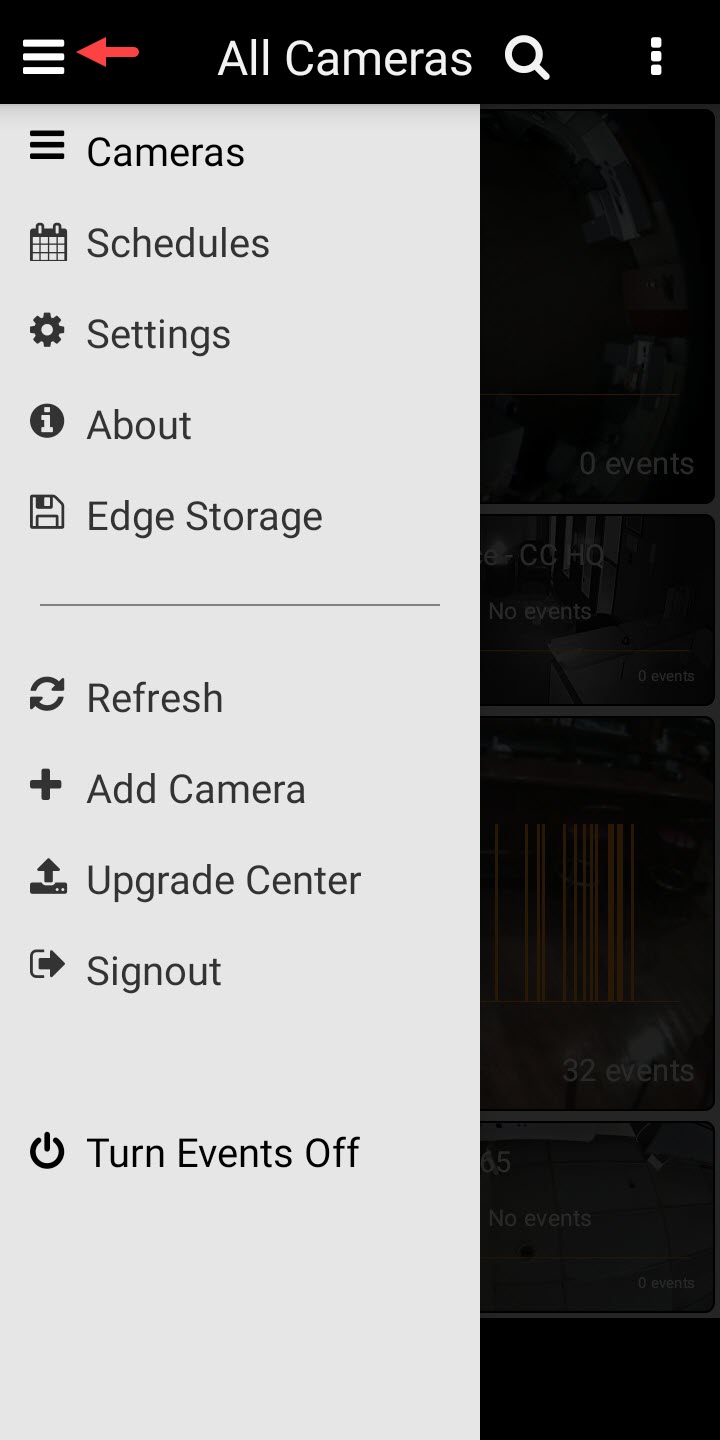
The main menus are:
Settings (Manage Groups, Add/Remove Email notifications, Edit Password/Email/Timezone)
About - App version, Terms of Use
Edge Storage - Add an SD card to your account
Refresh - Refresh application if images aren't updating
Add Camera - For further information search this knowledge base for your specific camera
Sign-out
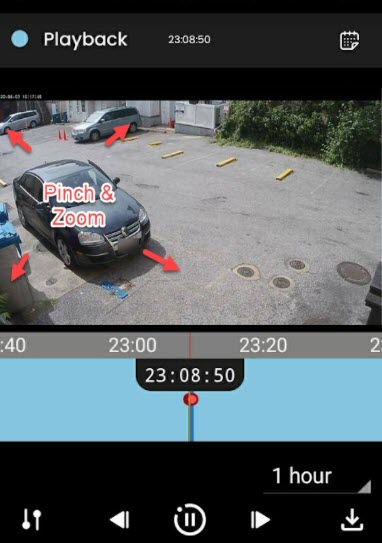
Pinch & Zoom and Camera Swiping
You can digitally zoom your cameras from the mobile app by pinching and expanding you fingers on the screen:
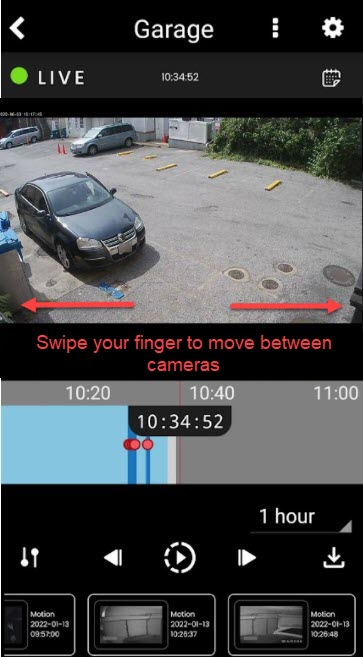
You can also swipe between cameras in the same group:
Pan/Tilt/Zoom
If your camera is capable of pan/tilt and optical zoom controls see this article.