

Using Cold Storage (Camcloud)
Cold Storage is an optional add-on that can be enabled per camera to archive recorded video for up to 24 months. Once a camera is placed into Cold Storage, its archived footage will not appear on the regular Timeline. Instead, you can retrieve it on demand from the Download page.
At a Glance
Enabled per camera; multiple duration tiers available (6/12/18/24 months).
Archived footage is hidden from the timeline but can be downloaded on demand.
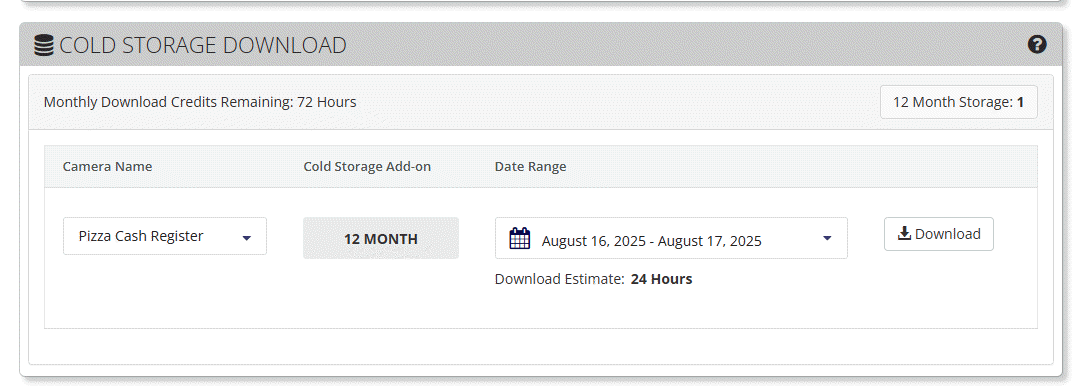
Monthly download credits (in hours) apply to Cold Storage downloads. The page shows Credits Remaining and a Download Estimate for your selection.
Partners/Resellers enable the add-on for a customer in the Partner Portal → Account Profile.
Download Archived Footage (Customer UI)
Go to Downloads menu.
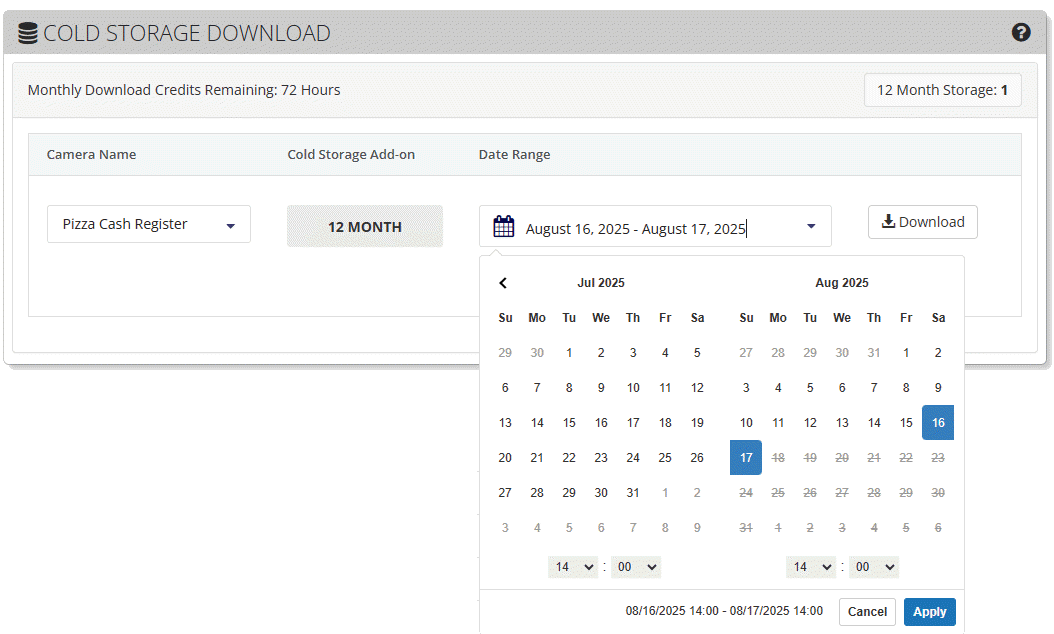
Choose the Camera you want to retrieve from.
Select the Cold Storage Add-on duration assigned to that camera (e.g., 12 Month).
Pick a Date Range and, if needed, adjust the start/end time.
Review the Download Estimate and your Monthly Download Credits Remaining.
Click Download to start the export.
Notes:
If you don’t see a camera in this list, the Cold Storage add-on may not be assigned to it yet (see the Partner steps below).
If the estimate exceeds remaining credits, reduce the date/time range or wait until credits renew.
Enable/Assign Cold Storage to Cameras (Partner Portal)
Partners/Resellers can enable Cold Storage for a customer account and assign it to specific cameras from the Partner Portal.
Step 1 — Open the Account
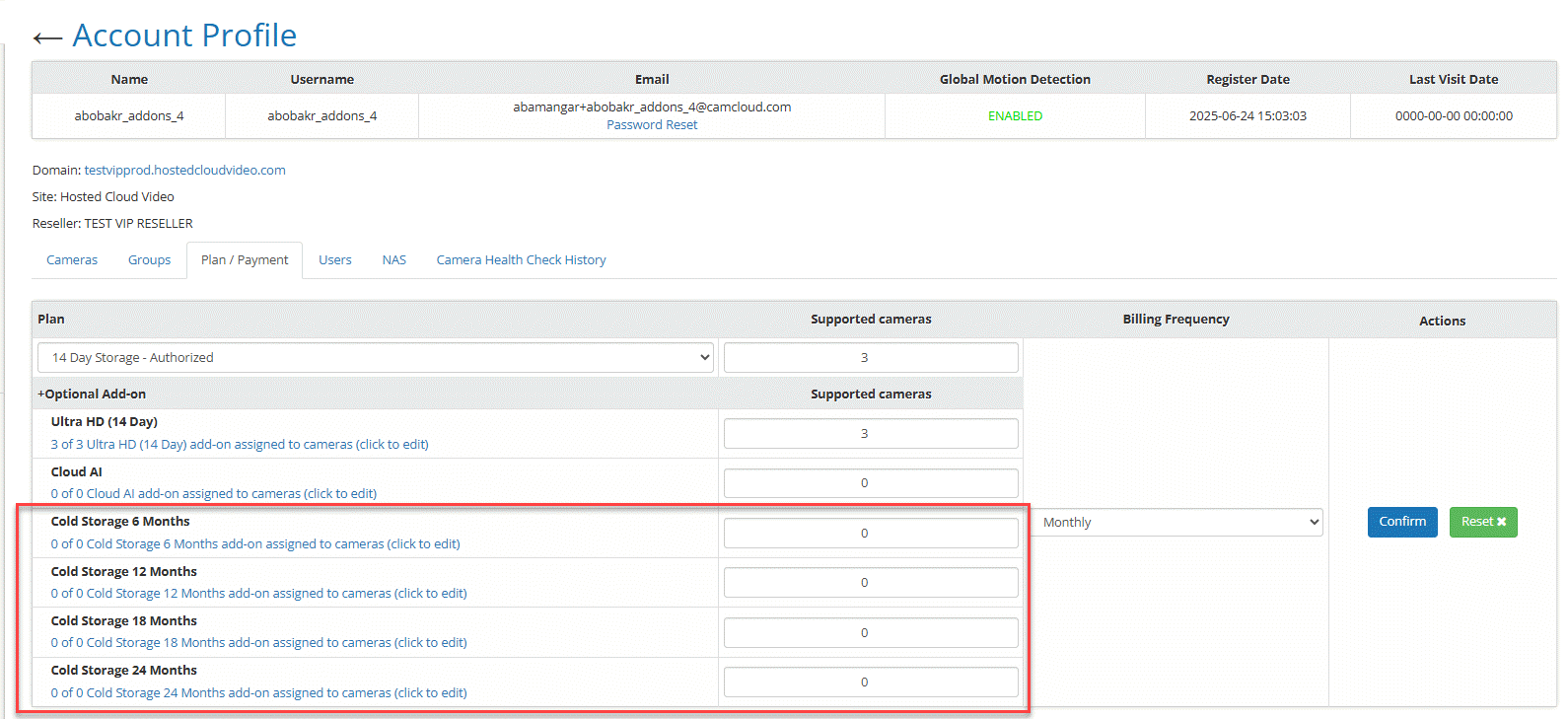
Navigate to the customer’s Account Profile.
Click the Plan / Payment tab.
In Optional Add-on, locate the Cold Storage tier(s) you want to use (6/12/18/24 Months).
Step 2 — Assign Cameras
Click (click to edit) beside the desired Cold Storage tier.
In Manage Camera Add-Ons, check the cameras you want to include and click Save.
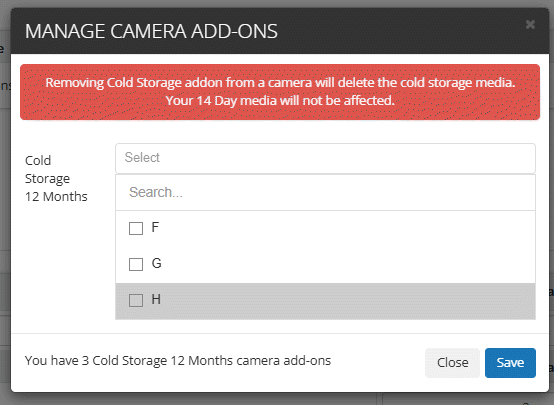
Important: Removing the Cold Storage add-on from a camera will delete its archived Cold Storage media for that camera. Standard short-term (e.g., 14-day) media is not affected.
How Cold Storage Behaves
Timeline visibility: Archived recordings are not shown on the timeline. Use the Cold Storage Download page to retrieve them.
Per-camera control: You can mix cameras with and without Cold Storage in the same account.
Duration: Choose a tier (6/12/18/24 months) based on compliance or business requirements.
Credits: Downloads consume monthly credits. The UI displays remaining credits and estimates before you download.
FAQ
Q: I don’t see the Cold Storage Download option or my camera isn’t listed.
A: The camera likely doesn’t have a Cold Storage add-on assigned. A partner/reseller must assign it in the Partner Portal → Account Profile → Optional Add-on.
Q: Does removing the add-on delete old archives?
A: Yes. Removing the add-on deletes that camera’s Cold Storage archives. Regular short-term media is unaffected.
Q: Can I preview Cold Storage footage on the timeline?
A: No. Cold Storage is for long-term archiving. Use the download workflow to retrieve the clips you need.
Troubleshooting
Download exceeds credits: Narrow your date range or wait for credits to renew.
No results in the chosen range: Confirm the camera had Cold Storage enabled during that period.
Wrong duration selected: Pick the Cold Storage tier that matches the camera’s assignment (e.g., 12 Month).