
This feature is only available through business plans.
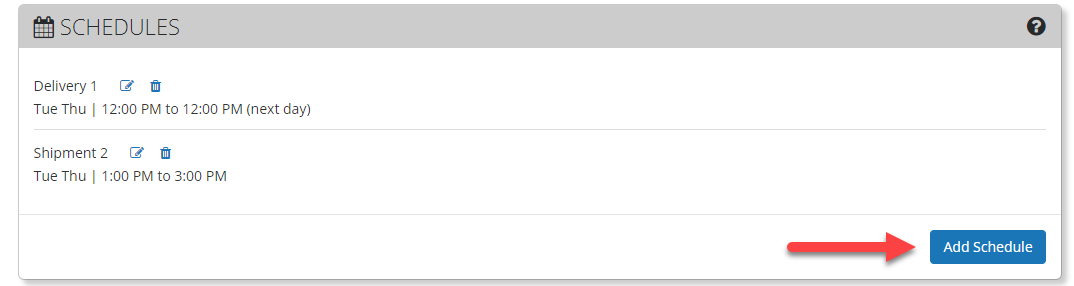
If you want to set up schedules for when motion events are received or for when you receive motion notifications (Email and Mobile Pop-ups), you can do this in the settings section of an admin account.
Let's say we own a shop that only operates on weekdays. This shop is busy with customers all day throughout the week. You still want to record all day but you don't want to get tons of notifications during the day. Instead you want notifications at night and on weekends, when the shop is closed.
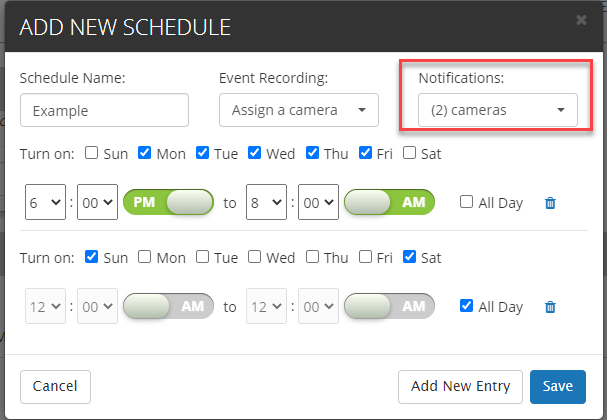
Easy! Setup a schedule. In this example we can create a schedule to only show notifications between the hours of 6pm and 8am weekdays and all day on the weekends.
Make sure your schedule is assigned to your camera, this can be done when you first setup your schedule or right in the edit menu of the camera after the schedule has been created:
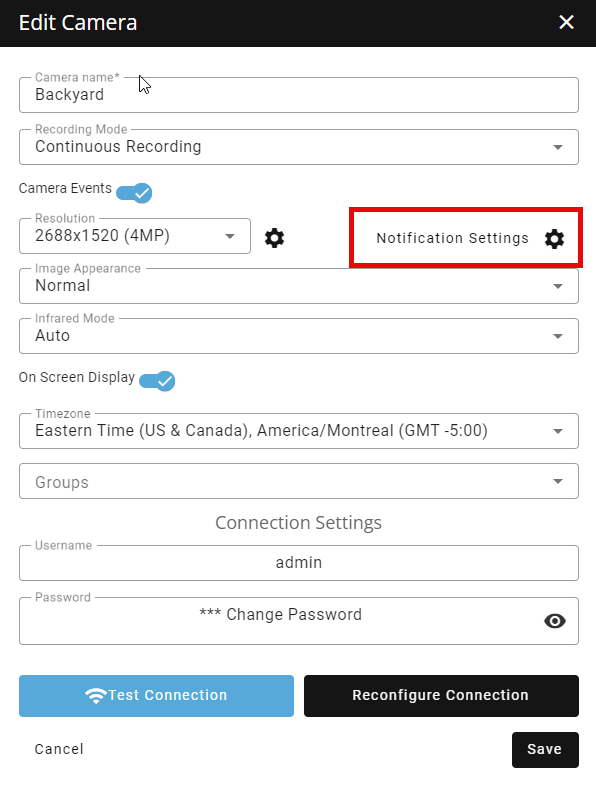
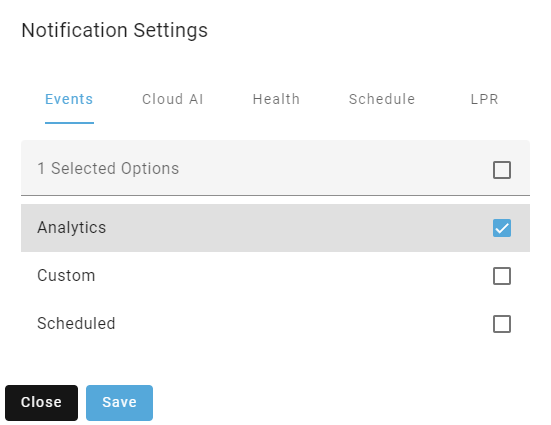
Also keep your event notifications ON (the Analytics checkmark shows it's enabled). Your schedule will then dictate when you get the notifications.
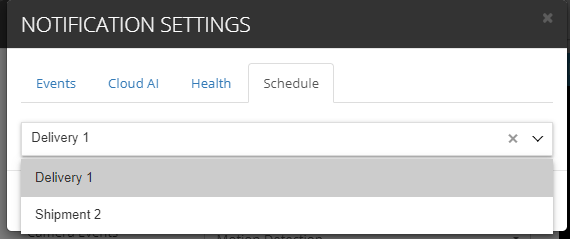
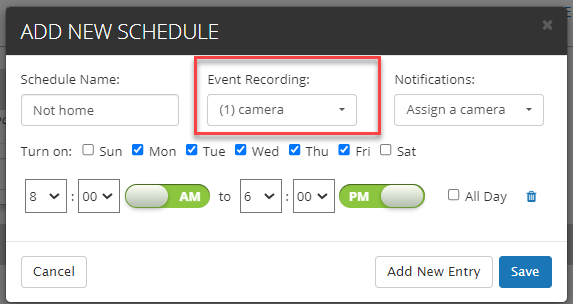
The same concept for notifications applies to event recording. If you want to schedule when events come in you can do that as well: